
Guides Challenges
Challenges
A challenge is a race between two real places. Here's everything about creating one, filling it with people, and getting to the finish.
What a challenge is #
A challenge is a race between two real places. It has an activity (walking, running or cycling), a target distance taken from the actual route, a start, and an end date.
Everyone who joins races the same distance individually. It isn't a shared pot that the group fills together — you each need to cover the full target, and the first person to do it tops the standings.
Challenges move through four states, shown as a badge on the challenge:
| Status | What it means |
|---|---|
| PENDING | Created but not started. People can join and be invited. Nothing counts yet. |
| ACTIVE | The race is on. Recording counts. Nobody new can join. |
| COMPLETED | Finished. Final standings are published. |
| CANCELLED | The host cancelled it before it started. |
Creating one #
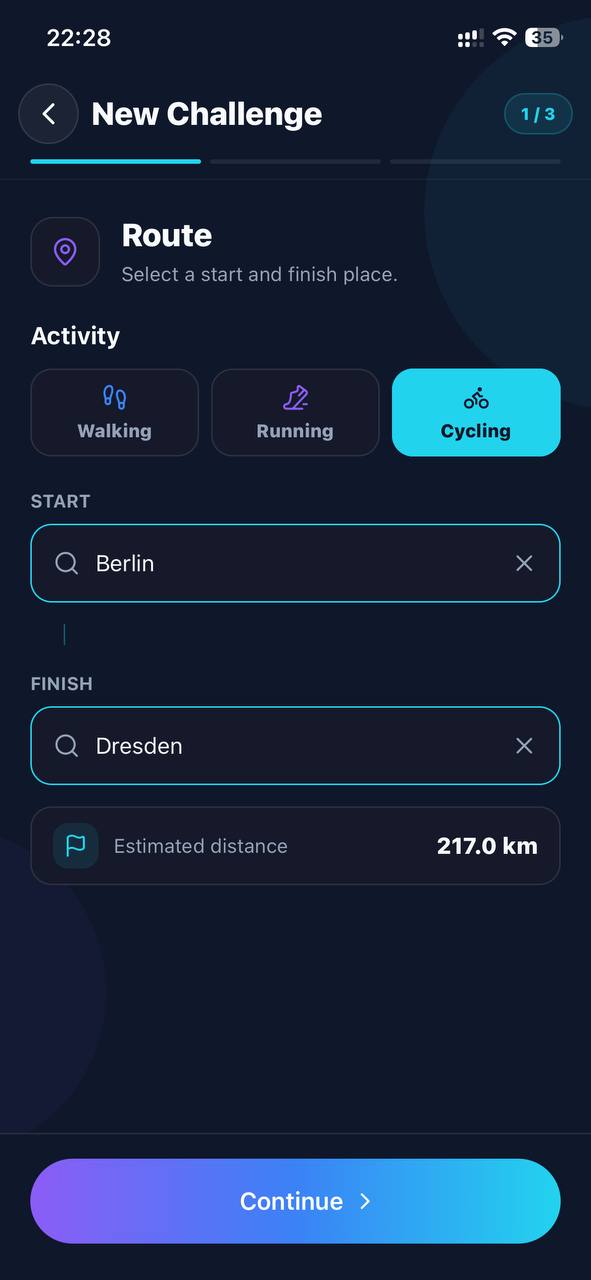
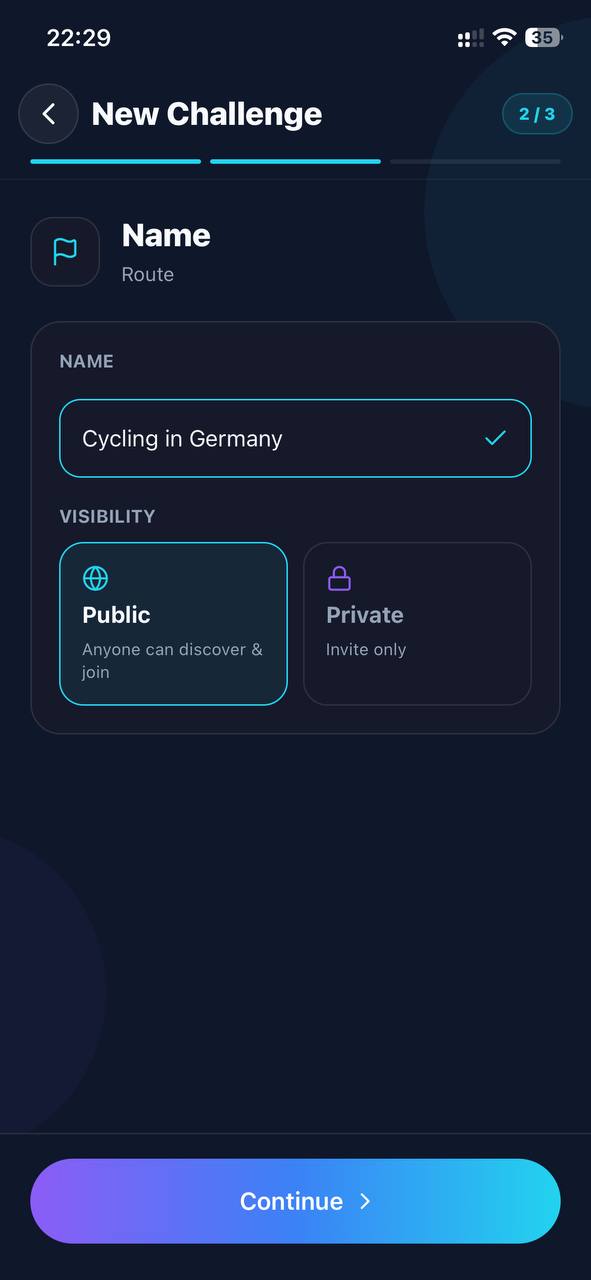
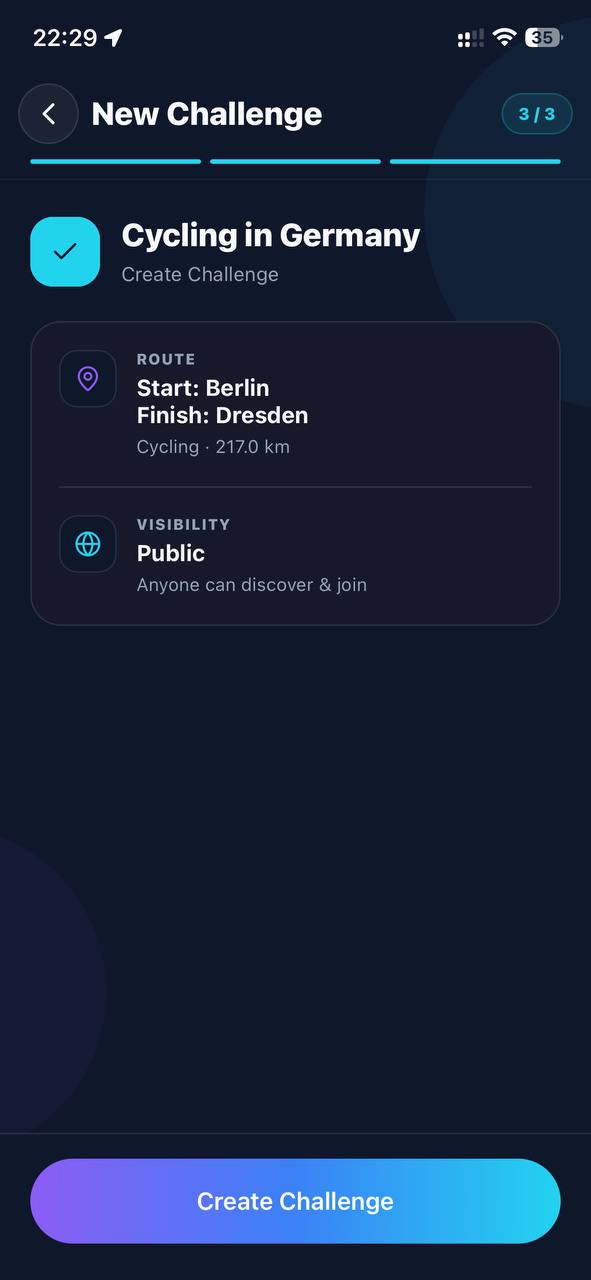
From the Challenges tab, tap Create. There are three steps.
- RouteEither pick a ready-made route, or tap Create manually, choose walking, running or cycling, and search for a start and a finish. DerbyOn routes between them and shows the Estimated distance — that's the real routed distance, not a straight line.
- Name and visibilityGive it a name, and choose Public (anyone can discover and join) or Private (invite only). If you don't name it, it's named after the two places.
- Start timeStart now opens the race immediately. Schedule lets you pick a date and time in your local timezone — useful for giving people a few days to join.
Ready-made routes #
If you'd rather not design a route, DerbyOn ships with eleven, sorted from gentlest to hardest within each activity. The distances are curated, so they're the same for everyone.
| Route | Activity | Distance | Difficulty | Time allowed |
|---|---|---|---|---|
| Golden Gate Crossing | Walking | 2.7 km | Easy | 7 days |
| Race to Rome | Walking | 20 km | Medium | 14 days |
| Manhattan End to End | Walking | 21.6 km | Medium | 14 days |
| Inca Trail to Machu Picchu | Walking | 43 km | Hard | 28 days |
| Copacabana 5K | Running | 5 km | Easy | 7 days |
| Thames Path 10K | Running | 10 km | Medium | 7 days |
| Great North Run | Running | 21.1 km | Hard | 7 days |
| Athens Classic Marathon | Running | 42.195 km | Hard | 14 days |
| Amsterdam Canal Ring | Cycling | 15 km | Easy | 7 days |
| Danube Path: Passau to Linz | Cycling | 90 km | Medium | 14 days |
| The Century | Cycling | 160.9 km | Hard | 21 days |
How long a challenge lasts #
Ready-made routes come with the time allowance in the table above. For a route you build yourself, DerbyOn works out a deadline from the distance, at a deliberately gentle pace — the pace of someone fitting it around an ordinary week, not a training plan:
| Activity | Assumed pace | Example |
|---|---|---|
| Walking | 2 km a day | A 40 km route gets 20 days |
| Running | 4 km a day | A 40 km route gets 10 days |
| Cycling | 10 km a day | A 90 km route gets 9 days |
The result is always at least 3 days and at most 60 days.
Inviting people #
Three ways, all of which only work while the challenge is still PENDING.
- Share invite link — sends a link that opens the challenge straight in the app. If the person doesn't have DerbyOn yet, it sends them to the right store first, and the challenge is waiting once they sign in.
- Invite code — 8 characters, deliberately drawn from an alphabet with no 0, O, 1, I or L in it, so it survives being read out loud or written down.
- Invite by name — tap the add-person button on the challenge page and search for someone already on DerbyOn. They get a notification and it appears in their Invitations.
Joining someone else's #
Four ways in:
- Discover — public challenges that haven't started yet, in the Challenges tab.
- An invite link — tap it and the app opens the challenge.
- An invite code — tap Have an invite code? at the top of the Challenges tab and type it in. You'll see a preview of the challenge and who's already joined before you commit.
- An invitation — if someone invited you by name, it's in your Notifications inbox with Accept and Decline.
You can leave a challenge you've joined from its page. If you leave, your progress in that challenge goes with it.
Starting, running and finishing #
If you created it
You're the host. Only you can start, reschedule or cancel it. When everyone's in, tap Start Challenge — the app will remind you that no one can join afterwards.
While it's running
- Record your walks, runs or rides as normal, with the challenge selected.
- Your progress is the share of the target distance you've covered.
- Checkpoints sit at 25%, 50% and 75% of the route, and you'll pass milestones as your distance adds up.
- You'll get a notification when someone passes you, and when someone finishes.
How it ends
A challenge finishes in one of three ways:
- Enough participants vote to end it (see below).
- The deadline passes.
- Everyone finishes the target distance.
Once it's over you get a result card — your rank out of the field, your time if you finished, the final standings, the total distance everyone covered between them, and your own sessions from the race.
Ending it early #
Sometimes a challenge outlives its usefulness — half the group has finished and the rest have moved on. Any participant can tap Vote to End.
- It ends once 90% of participants have voted.
- The host's vote counts the same as everyone else's — no veto, no extra weight.
- Voting twice doesn't help; the count only moves once per person.
- In a solo challenge, your single vote ends it immediately.
The challenge page shows the running tally so you can see how many more votes are needed. When it ends this way, everyone gets a notification saying how the vote went.
How the standings are ranked #
Both the live leaderboard and the final standings use the same order:
- Finishers firstAnyone who covered the full target distance is ranked above anyone who didn't.
- Then by who finished firstAmong finishers, the earliest finish wins.
- Then by distanceAmong everyone still racing, the greatest distance covered comes first.
Sharing your result #
From a challenge you can generate an image and share it wherever you like. There are three flavours, depending on where the challenge is up to:
- Share challenge — before it starts, to get people to join.
- Share progress — mid-race, showing how far along you are.
- Share result — afterwards, with your rank, the field size and your distance.