
Guides Getting started
Getting started
From installing the app to finishing your first recorded session — about ten minutes, most of which is the walk.
Install the app #
DerbyOn runs on iPhone and Android. It's free to download.
Create your account #
You have three ways to sign up. All of them get you to the same place.
- Sign in with Apple (iPhone only) — the fastest option, and you can hide your email address if you'd rather.
- Continue with Google — one tap, no password to remember.
- Email and password — tap Or sign in with email, then enter your details.
If you sign up with email
We'll send a 6-digit code to your inbox. Type it into the Check your Inbox screen and tap Verify & Continue — that both confirms your address and signs you in, so there's no second login step.
- The code is valid for 10 minutes.
- You get 5 attempts before it's cancelled and you need a fresh one.
- No code? Check spam, then tap Didn't get a code? → Resend code.
- Your password needs at least 8 characters, one capital letter and one number.
Choose your language #
The first time you open DerbyOn it asks which language you'd like to use. There are 14: English, Polski, Русский, O'zbek, Español, 简体中文, हिन्दी, العربية, Português, বাংলা, Français, Deutsch, 日本語 and 한국어.
You can change it any time from Profile → Language.
Permissions, and why we ask #
DerbyOn asks for a small number of permissions. Here's what each one is actually for, so you can make an informed call.
| Permission | What it's for | Needed? |
|---|---|---|
| Location (while using) | Recording your route and showing you on the map. | Yes — recording won't work without it |
| Location (background / always) | Keeping your session recording when your phone is locked or in your pocket. | Strongly recommended |
| Notifications | Race updates, invitations, milestones, and someone passing you. | Optional |
| Camera / Photos | Taking or choosing a profile picture. | Optional |
We never ask for notification permission on our own — it's only requested when you tap to enable it on the Notifications screen. DerbyOn does not use HealthKit, Google Fit or your step counter, and asks for no health data at all.
What we do and don't collect is spelled out in Account & privacy and the full privacy policy.
Your first session #
You don't need a challenge to start. The quickest way to see how DerbyOn works is a short solo walk.
- Tap the play buttonIt's the round button in the middle of the bottom bar.
- Pick an activityIn the Solo panel choose Walking, Running or Cycling. If you're recording for a challenge instead, the activity is set by the challenge and can't be changed.
- Wait for GPSLook for GPS SIGNAL: STRONG. Outdoors with a clear view of the sky this takes a few seconds.
- Tap START ACTIVITYThe status changes to RECORDING… and time and distance start counting.
- Go for your walkLock your phone and put it away — recording continues, and you'll see it on your lock screen.
- Tap STOP ACTIVITYYour session is saved and appears on your Home screen and in Performance.
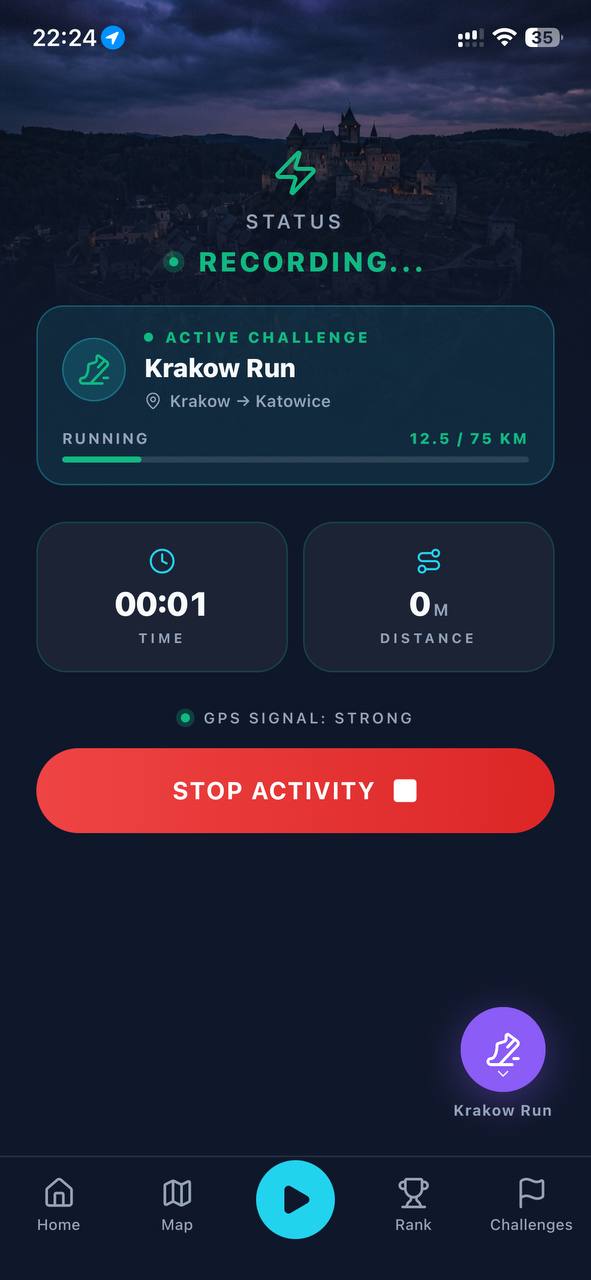
There's a lot more detail in Recording activities, including offline recording and what counts as a fair session.
Finding your way around #
Five places, along the bottom of the screen:
| Tab | What's there |
|---|---|
| Home | Your dashboard — the race you're in, how far along you are, your recent sessions and events. |
| Map | The live race map, replays of past sessions, and your territory. |
| Record (centre) | Start and stop an activity. |
| Rank | Leaderboards — for your current challenge, and globally. |
| Challenges | Your challenges, invitations, and public ones to discover. |
Your profile is behind the avatar in the top-right of the Home screen. That's where the account settings, language, Premium and your standing live.